Guides · 2026-10-28
Pixel Art Blurry After Exporting from Photoshop? Find the Cause and Fix It
You draw a 32×32 sprite in Photoshop with Nearest Neighbor on, export a PNG, open it in another program and it's mush. Reopen the PNG in Photoshop and it's sharp again. The Adobe Community thread "Pixelart get's blurred when i export!" from 2019 describes exactly this, and it has been read more than 54,000 times.
The answer in that thread is the one most people need: the PNG is usually fine. The program showing it enlarges a tiny image and smooths it on the way. Sometimes the export really does change your pixels, though. Here's how to tell the two apart in a minute, and how to fix each one.
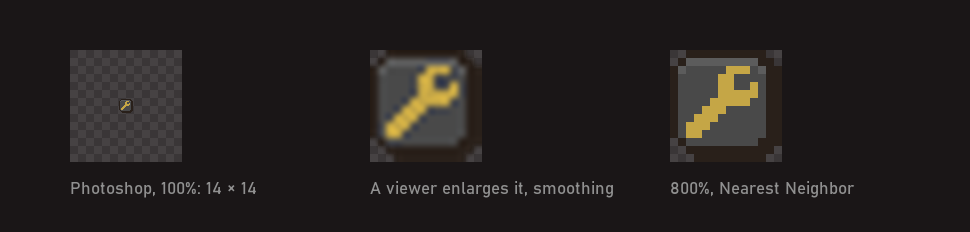
Step 1: is the file blurry, or the viewer?
- Open the exported PNG in Photoshop with File > Open. Don't place it into another document: placing can resample it on its own (see Why pixel art goes blurry when you place it in Photoshop).
- Press Ctrl+1 (Cmd+1) for 100%, then zoom in to 800%.
- Check Image > Image Size: are width and height the numbers you drew at?
If the pixels are hard-edged and the size is right, the file is fine. Skip to step 3: the viewer, the website or the engine is smoothing it. If it's soft, or the size changed, the export did it. Read step 2.
Step 2: make the export leave your pixels alone
Export As and Save for Web can resize. Both dialogs have an image size section. At 100% nothing is resampled. Any other size makes Photoshop compute new pixels with the method chosen there, and the smooth methods blend neighbours. Set the size back to 100%, or pick Nearest Neighbor if you want a bigger file.
Save as PNG, not JPEG. JPEG compression smears hard edges and leaves noise around them. Pixel art goes out as PNG (or GIF for simple animations). File > Save a Copy, PNG, and the pixels are written as they are.
Look for an earlier resample. If the size in step 1 was already wrong in the PSD, the blur happened before the export: a Free Transform or Image Size with the default Bicubic method, or a sprite placed as a Smart Object. Set Edit > Preferences > General > Image Interpolation to Nearest Neighbor (preserve hard edges) so later transforms keep hard edges, then redraw or reimport the damaged parts.
Step 3: if you want it bigger, enlarge it yourself
Image viewers, browsers and chat apps show a 32×32 PNG small, and when you zoom they enlarge it with smoothing. You can't change that on someone else's screen. You can send them a file that's already big:
- Image > Image Size, Resample on, method Nearest Neighbor (hard edges).
- Type a whole multiple: 400%, 800%, 1000%. At 150% some pixels become two wide and others one, and the art looks uneven.
- File > Save a Copy as PNG with a name like
icon@8x.png, and keep the original for the game.
On your own website you can skip the big file: the CSS image-rendering: pixelated makes the browser enlarge the small one with hard edges.
Step 4: tell the engine it's pixel art
Engines filter textures by default, so a sharp PNG looks soft once the camera scales it. This is the Unity screenshot in the 2019 thread.
- Unity: select the texture, set Filter Mode to Point (no filter) and Compression to None, then Apply.
- Godot 4: Project Settings > Rendering > Textures > Canvas Textures > Default Texture Filter to Nearest. The default is Linear. A single node can override it with its own Texture > Filter.
- Unreal Engine: in the texture, set Texture Group to 2D Pixels (unfiltered) and Compression Settings to UserInterface2D (RGBA).
- GameMaker: in Game Options, open your platform's Graphics page and untick Interpolate colours between pixels.
- Phaser: set
pixelArt: truein the game config. It turns antialiasing off and draws at whole-pixel positions.
The engine can still blur a crisp texture if the camera scales the game by 1.5 or 2.25. Scale your game view by whole numbers too.
Or with SpriteExporter
Most export blur comes from a size field nobody touched on purpose. SpriteExporter, our plug-in for Photoshop, doesn't have one to get wrong: it writes each visible layer or group as a PNG at 1×, the exact pixels, or 2× with Nearest Neighbor. Nothing else goes through a resample.
- Open the panel and pick a folder.
- Choose 1× for the game, or 2× for a preview or a high-density screen.
- Choose Trim to artwork or Keep canvas size, then export. Layer names become file names.
It's $9.99, for Photoshop 2023 (v24.0) and later, tested on Windows. For bigger multiples such as 8× for a post, use Image Size as in step 3.
If the sprite went soft on its way into Photoshop, the free PixelDrop panel brings image files in as layers at their original size, with no resampling.
Quick answers
It's sharp in Photoshop at 100% but blurry at 33% or 66.7%. That's Photoshop's preview, not the file. Look at 100%, 200% or 400%.
Windows Photos shows it blurry, Paint shows it sharp. Same file, different viewers. Photos smooths when it enlarges a small image. Judge the file in Photoshop at 100%.
Does the PPI setting matter for the export? No. A PNG for screens is only its width and height in pixels. PPI matters when you place the file into another document, because Photoshop then scales by physical size.
I uploaded it to Twitter/X or Discord and it's blurry. Those sites resize and recompress images. Upload the version you enlarged in step 3, so they have less to resize.
The plug-in in this guide: SpriteExporter.