Guides · 2026-10-02
Export Photoshop Layers as PNG Without Trimming (Keep Canvas Size)
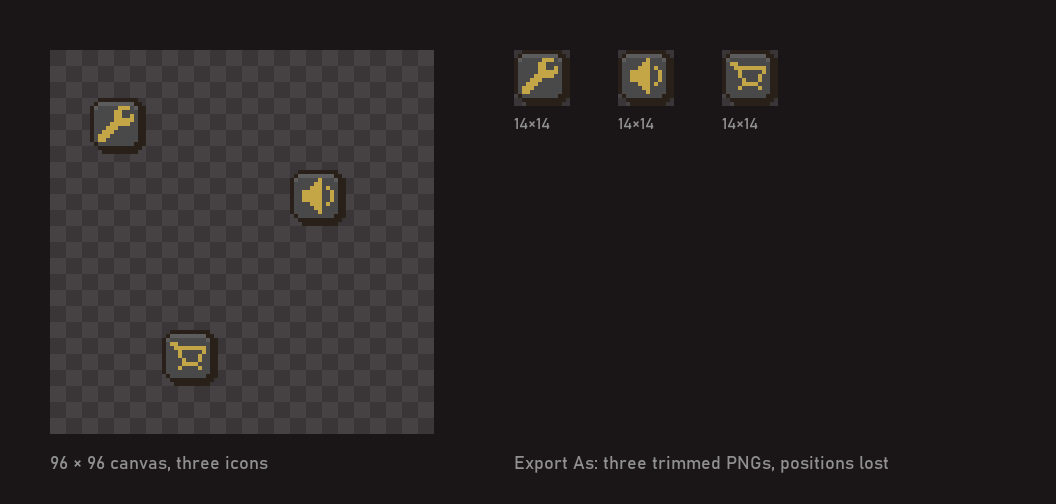
You built a screen in Photoshop: a background, a panel, three buttons, a title. Every piece is on its own layer, exactly where it should be. You export them as PNGs and every file comes out cropped to its own pixels, so a button that sat at the bottom right of a 1920×1080 canvas is now a 220×80 image with no idea where it was.
For a single icon that's fine. For animation frames, UI pieces or anything you'll stack again in an engine or an editor, it means rebuilding the layout by hand. One Adobe Community thread on this, "Exporting multiple layers as PNG but keeping artboard dimensions", has over 87,000 views.
Here's how to keep canvas size and position, without buying anything, and then a faster way.
Why Photoshop crops your PNGs
Export As and Quick Export save the visible pixels and throw away the transparent space around them. Run them on layers (right-click a layer in the Layers panel) and each layer comes out at the size of its own artwork. There's no checkbox to turn that off.
Method 1: Layers to Files with "Trim Layers" off
This is the built-in answer and it works for most cases.
- Hide every layer you don't want exported. Layers to Files can skip hidden ones.
- Go to File > Export > Layers to Files.
- Pick the destination folder and, if you like, a File Name Prefix.
- Tick Visible Layers Only.
- Set File Type to PNG-24 and tick Transparency.
- Untick "Trim Layers". This is the setting that keeps every file at canvas size.
- Click Run and wait. It's a script, so on a big document it takes a while.
Every PNG now has the canvas size, and each layer sits exactly where it was.
Its limits:
- File names get a number. Each file is the prefix, an index and then the layer name, like
ui_0002_button-ok.png. If your engine or your code expectsbutton-ok.png, you'll be renaming. - Groups aren't merged. A button made of three layers (base, icon, shadow) comes out as three files, not one button. To get it as one image you have to merge it first (Method 2).
Method 2: one group or layer at a time, exactly as you want it
Slower, but gives you one clean PNG of a whole group with the name you choose.
- Right-click the group (or layer) in the Layers panel and choose Duplicate Group…
- In Destination > Document, choose New and give it the name you want for the file.
- The new document has the same canvas size as the original, and the group is in the same position.
- In the new document, right-click the group and choose Merge Group, if you want it flat.
- File > Save a Copy, format PNG. The full canvas is kept, transparency included.
- Close the new document without saving and repeat for the next group.
Good for five pieces. For forty, it's an afternoon.
Method 3: the corner-pixel trick (use with care)
People in the forums keep Export As from trimming by making the layer reach the corners of the canvas:
- On the layer you want to export, add a single pixel in the top-left corner and one in the bottom-right corner.
- Set those pixels to a very low opacity, around 1%.
- Export As now sees artwork from corner to corner and keeps the full size.
It works, but those two pixels are really in your PNG. Almost invisible is not invisible: on a dark background, with additive blending or with an outline shader, they can show up. For final assets, prefer Method 1 or 2.
Or with SpriteExporter
SpriteExporter is a plug-in for Photoshop we made because we were doing Methods 1 and 2 every day on game UI and sprites. One panel, three choices:
- Choose the crop. Keep canvas size for frames and UI pieces, or Trim to artwork when you want each PNG as small as its content (with optional padding).
- Choose what leaves. Each visible layer, or each top-level group merged into one PNG. Optionally, only the groups you selected in the Layers panel.
- Pick a folder. The layer or group name becomes the file name, with a prefix only if you want one. Export at @1x or @2x in one pass, with nearest-neighbour scaling so pixel art stays sharp.
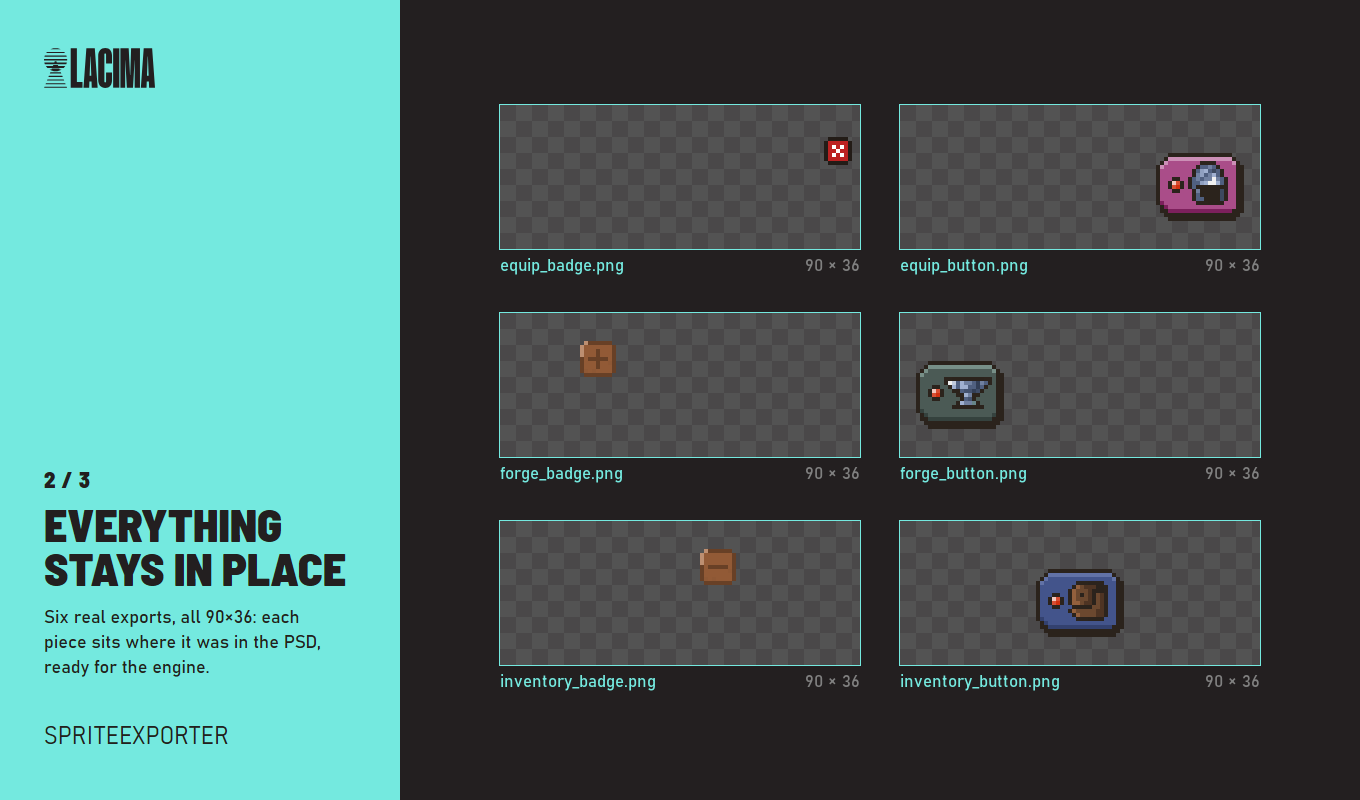
Hidden means hidden, including layers inside hidden groups, and your document is left exactly as it was. Duplicate names are handled: overwrite with a warning, or add _2, _3.
It's $9.74 and works in Photoshop 2023 (v24.0) and later, tested on Windows.
Quick answers
Can I keep position but lose the empty space? Not in one PNG: position is the empty space. If you need small files and positions, export trimmed and note each layer's x/y, or keep canvas size and let the engine pack the textures.
My exported PNG has a white background. Check Transparency is ticked and the file type is PNG-24, not PNG-8 with a matte colour.
The plug-in in this guide: SpriteExporter.